


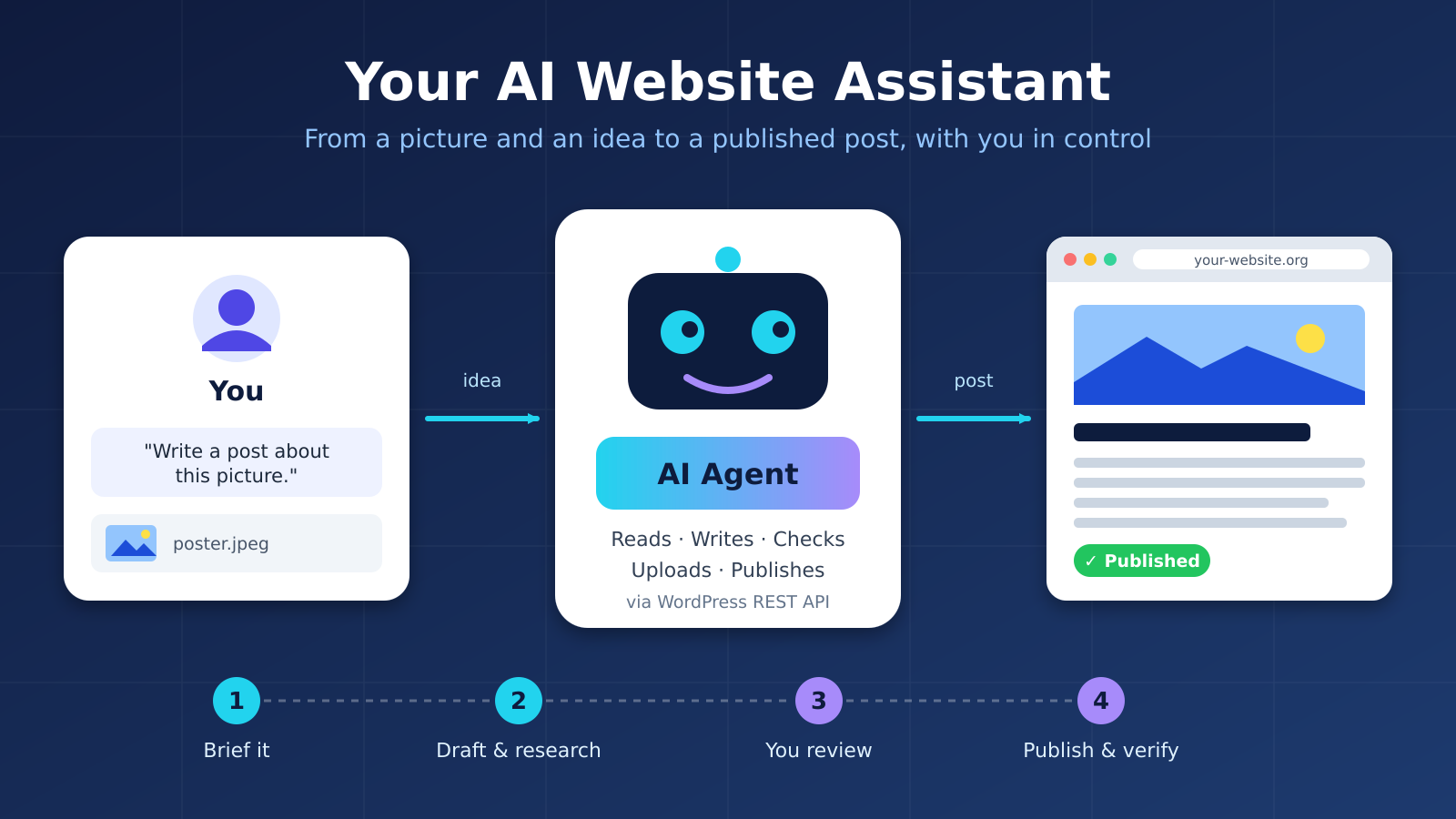
This blog post was written, illustrated and published by an AI agent working from my instructions. Here is exactly how that works, how you can set up the same thing for your own website, and where you should still keep your hands on the wheel.
The job I handed over
In one working session I asked an AI agent (Claude Code, running on my home PC) to publish a series of articles to a WordPress website through a command-line connection. For each article the routine was the same: I gave it a picture, such as an infographic or diagram, and a one-line instruction: read the picture, write a story about it, add professional context and reliable references, and post it. Within minutes each article was live with its image, categories, excerpt and a list of sources.
The interesting part is not that an AI can write. It is that the whole chain, from reading an image to checking links to publishing, can be handed to an agent, while the human stays the editor.
What the agent actually did, step by step
- Read the picture. It looked at the image and extracted the headings, numbers, tables and diagrams.
- Researched and enriched. It added context, explained terms, and picked reference links, then tested every link to make sure it opened before including it.
- Checked the facts it could check. It recomputed numbers from the image, such as antenna lengths and path-loss figures, and flagged where the source graphic disagreed with the maths. In one case a table was labelled “half-wave” when the values were quarter-wave; in another, circuit values did not resonate on the target frequencies. The corrections went into the article instead of being copied blindly.
- Wrote the post in the site’s language and style, matching the headings, tone and categories of earlier posts.
- Uploaded media and published through the WordPress REST API: image, alt text, title, categories, excerpt and featured image, all in one script.
- Edited afterwards. When I said a frequency was wrong, it fetched the live post, corrected every occurrence (title, body, alt text, URL slug) and republished. When I added a new server to the story, it added a new section the same way.
- Troubleshot. When this very article’s image upload failed with a server error, the agent logged in over SSH, found that the web server user lacked write permission on the uploads folder, applied a narrowly scoped fix, and retried. That is the kind of detective work that normally eats an hour.
How to set it up (semi-automation in about 15 minutes)
This section uses an Application Password. Please read the next section on hosting limitations first, since some hosts or plugins block this method, and SSH is often the better route.
1. Create a dedicated Application Password
Since WordPress 5.6, every user can create Application Passwords. In the dashboard open Users → Profile → Application Passwords, give it a name such as “claude-publish”, and click Add New. WordPress shows a 24-character password once. Details are in the WordPress REST API authentication guide.
- It is separate from your login password and can be revoked at any time without changing anything else.
- It only works for the REST API, not for logging in to the dashboard.
- The site must use HTTPS.
2. Store it safely
Keep it in a local file that only you can read (for example chmod 600 apps-passwd.txt), together with the login username (not the display name – I learned that one the hard way). Never paste it into public chats, git repositories or the posts themselves.
3. Test the connection
curl -u "USERNAME:APP PASSWORD" \
  https://your-site.example/wp-json/wp/v2/users/me?context=edit
If you get your name and role back, you are in. An error such as rest_not_logged_in means the username or password is wrong.
4. Upload the image, then create the post
# upload picture
curl -u "USERNAME:APP PASSWORD" -X POST \
  -H "Content-Disposition: attachment; filename=hero.png" \
  -H "Content-Type: image/png" \
  --data-binary @hero.png \
  https://your-site.example/wp-json/wp/v2/media

# create the post (use "draft" first!)
curl -u "USERNAME:APP PASSWORD" -X POST \
  -H "Content-Type: application/json" \
  -d '{"title":"My post","status":"draft","content":"<p>Hello</p>","featured_media":123,"categories":[5]}' \
  https://your-site.example/wp-json/wp/v2/posts
These are the standard Posts and Media endpoints. An AI agent writes and runs these for you, so you never have to memorise them.
5. Give the agent standing instructions
Tell it once, in a project instruction file or in the chat, how you want things done: the language, the tone, the categories to use, always cite verified references, always add alt text, and always publish as a draft unless I say otherwise. After that, your daily prompt can be as short as “post this picture”.
Important: Application Passwords may not work on every hosting
The Application Password method is convenient, but it depends on the website allowing it. Before you build your workflow around it, be aware of these common roadblocks, especially on shared web hosting:
- Security plugins can disable it. Plugins such as Wordfence, and other hardening or firewall plugins, can block the REST API for unauthenticated users, restrict it, or switch Application Passwords off entirely. If you see
rest_not_logged_ineven though the username and password are correct, check your security plugin settings first. - The host or a plugin may remove the option. WordPress lets a site turn the feature off through the
wp_is_application_passwords_availablefilter. If the “Application Passwords” section is missing from your profile, this is the likely reason. - The Authorization header may be stripped. Some web server or CDN/proxy configurations drop the
Authorizationheader before it reaches WordPress, so the login silently fails. - HTTPS is required (except on local development sites), and a firewall or WAF may block automated requests from unfamiliar clients or IP addresses.
- Things change. A plugin update, a new security rule or a host policy change can turn a working setup into a broken one overnight. If it suddenly stops working, check what changed recently.
A better option: SSH access
If your VPS or hosting plan gives you SSH access, use that instead; it is much more reliable and powerful. Over SSH the agent can run WP-CLI directly on the server (create posts, import media, manage users, update plugins) with no dependence on the REST API or on any security plugin’s API rules. It can also read logs, check file permissions and diagnose problems, as it did when an image upload failed during this very session.
| Application Password (REST API) | SSH + WP-CLI | |
|---|---|---|
| Setup | Easy: create it in the dashboard | Needs an SSH account and key (VPS, or a host that offers SSH) |
| Reliability | Can be blocked by security plugins, firewalls or host settings | Independent of plugins and the REST API |
| Capability | Posts, media, pages and what the API exposes | Everything: content, plugins, themes, database, files, logs, backups |
| Troubleshooting | Limited: you only see error messages | Full: inspect permissions, services and configuration |
| Security | Narrow and revocable, limited to the user’s role | More powerful, so use key-based login, a dedicated user and least privilege |
Rule of thumb: on shared hosting without SSH, try the Application Password and be ready for it to be blocked. If you have a VPS or SSH access, prefer SSH with WP-CLI, and keep an Application Password as a lightweight backup method.
Where an AI agent can help you maintain a website
| Task | How the agent helps |
|---|---|
| Writing and editing | Drafts posts from notes, photos, posters or meeting minutes; improves clarity; translates between languages. |
| Research and references | Finds sources, adds explanations, checks that every link actually works. |
| Publishing | Uploads media, sets categories, tags, excerpts and featured images, and posts via the REST API. |
| Accessibility and SEO | Writes alt text, titles, meta descriptions and clean headings. |
| Corrections and updates | Finds and fixes every occurrence of a wrong figure, date or name across a post (or the whole site). |
| Content audits | Lists old posts, spots broken links, missing images, duplicate titles or posts without categories. |
| Server and site care | With SSH access it can run WP-CLI commands to check updates, list plugins, flush caches, inspect backups or diagnose permission errors, as you allow. |
| Visuals | Creates diagrams, infographics and hero images (SVG converted to PNG) to make stories more engaging. |
Ideas for different kinds of websites
- Personal blog: turn voice notes, photos and travel logs into well-structured posts; keep a consistent style; translate for a wider audience.
- Company website: publish product updates and news from internal notes, keep documentation current, refresh old pages, and check pages for broken links.
- NGO, club or society: publish event announcements and reports from posters and minutes, maintain member information pages, post in more than one language, and keep the volunteers’ workload small. This is exactly how I use it for an amateur radio association’s website.
Keep a human in the loop
“Semi-automatic” is the right goal. The agent does the heavy lifting; you stay the editor-in-chief.
- Review before you publish. Ask for drafts first. Read them. Approve the final version yourself.
- Verify facts. AI can misread small text in an image and can state things confidently that are wrong. In my own sessions the agent caught errors in source graphics, but I still had to confirm details such as official frequencies and regulations, and I supplied corrections the agent could not know.
- Use least privilege. Create a separate user with the Author or Editor role if the agent only needs to post. Use an administrator account or server access only when you really need it, and only for as long as you need it.
- Protect secrets. Revoke the Application Password when you are done or if it is ever exposed. Do not share it in chats or commit it to code.
- Be careful with destructive actions. Deleting, overwriting and bulk edits should be confirmed by you. Take a backup first.
- Respect copyright and honesty. Use images you have rights to, cite your sources, and consider telling readers that AI assisted in the writing.
A simple starter workflow
- Create an Application Password and save it in a protected file.
- Tell the agent your site address, the username, the categories you use and your preferred language and tone.
- Give it your first input (a picture, notes or an outline) and ask for a draft.
- Review, request changes, then say “publish”.
- Ask it to verify the live page and list what it changed.
- Repeat, and gradually hand over more routine jobs such as audits, corrections and updates.
Final thoughts
Maintaining a website is a long list of small tasks: write, format, upload, categorise, check, fix, repeat. An AI agent is good at exactly that kind of repetitive, multi-step work. It does not replace your voice, your knowledge or your judgement, but it can give you back hours every week to focus on the part only you can do: deciding what is worth saying.
References: WordPress REST API Handbook · REST API Authentication · Posts endpoint · Media endpoint · Roles and capabilities · WP-CLI · Claude Code documentation